How to Add an Instagram Account to an Existing Account
You are here: Home / Instagram Tips / Easily Manage Multiple Instagram Accounts with Account Switching

Got multiple Instagram accounts?
One for business, one for fun?
Another one for another business? Or maybe your pet?
Maintaining separate accounts is a highly recommended, yet frustrating, tactic.
Recommended, because Instagram users love to follow laser-focused accounts.
Frustrating, because you've had to sign in and out of one account to access another.
But no longer!
Instagram finally announced account switching February 8, 2016. I got it that same day, after checking obsessively for days. It had already been rolling out for a week!
Note: This post was originally published on Feb 8, 2016, and last updated October 2, 2021, with the latest info for you.
We'll cover all this below:
- How to create another Instagram account.
- How to add Instagram Account Switching to existing accounts.
- The latest on "one login" 2021.
- Push notifications on multiple Instagram accounts.
- How to remove an Instagram account you've added, with troubleshooting tips.
- NEW! Posting to multiple accounts from scheduling tools.
- NEW! How to switch Instagram accounts on desktop.
The purple banners will help you find a specific section. Read on!

How can I create another Instagram account?
You can create a new Instagram account while you're logged into your current account.
If you've already created multiple Instagram accounts, you can simply connect them, so skip to the next section.
Here's how to create a new Instagram account that will instantly be connected to your current one.
There are 12 steps, but they're really easy:
1 | Open your current Instagram account.
2 | Go to your profile.
3 | Tap the 3 lines at top right.
4 | Tap the gear icon at the bottom for Settings.
5 | Scroll to the bottom. Tap Add Account.
6 | On the next screen, choose Create New Account.
7 | Next, create a unique username. You can include dots, dashes, or numbers. If the one you want is taken Instagram will suggest alternatives, probably with a few numbers at the end of your choice.
8 | Create a password.
9 | You can choose Complete Sign Up, and your new account will be linked to your current account, phone number, and email.
OR tap Add New Phone or Email to have it linked to a different phone number or email.
10 | You can choose whether to Connect to Facebook to find friends to follow, or Skip.
11 | Same thing with your contacts: Search Your Contacts or Skip.
12 | Next you'll add an Instagram profile photo for this new account.
You can skip the remaining steps for now. You'll get another chance to Discover People by connecting to Facebook or your Contacts. Tap Next and you can manage your ad settings, or… start posting!
You're logged in to your new account, and can switch to your original account at any time.
Can I create more than one account with the same email?
This issue seems to be resolved in 2021.
It used to be that you couldn't use the same email or phone for a second Instagram account. Readers who managed to do this found themselves permanently locked out of the second account when they forgot their password.
Now you do NOT have to enter a new email or phone number to create another account, if you create it when logged into another account, as described above. They can share the same email / phone, OR you add a different one under Step 9 above.
Old version:
An email address can only be associated with one Instagram account.
New version:
…an email address can be associated with up to 5 Instagram accounts. source
Here's where to report it if you try to create an account with an email address, and get a message that the email is already in use.
Remember, per Instagram, "If you sign up with email, make sure you enter your email address correctly and choose an email address that only you can access. If you log out and forget your password, you'll need to be able to access your email to get back into your Instagram account."
More about "one login" further down.
How to add Instagram Account Switching to existing accounts
Account switching became available as part of Instagram version 7.15 for iOS and Android. First make sure your app is updated. If it IS and you still don't have account switching, one user reported that deleting and reinstalling the app solved this issue.
You can add multiple Instagram accounts to switch between them without having to log out and log back in.
To add existing Instagram accounts:
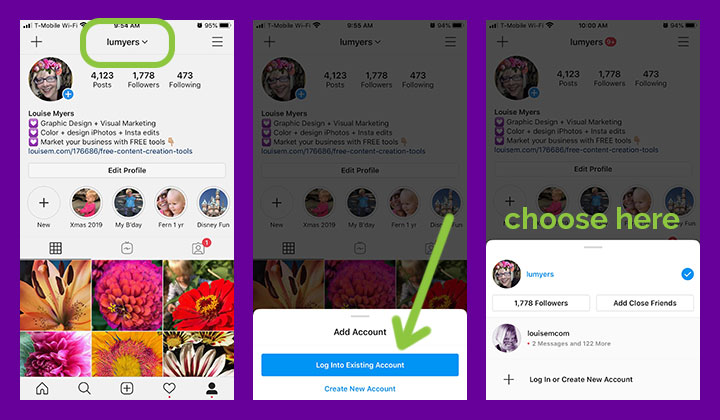
- Go to your profile and tap your account name along the top.
- In the pop-up that opens, tap 'Log Into Existing Account'.
- Once you have added the account, it will show in this pop-up (3rd pic).
- Tap the account you want to use to switch between them.
To switch between accounts you've added:
- Go to your profile.
- Tap your username at the very top of the screen.
- Tap the account you'd like to switch to.
- OR you can switch from any tab with a long-press your profile picture in the bottom left!
Note that you can add up to 5 accounts on one device. source
From now on, just tap your Instagram profile picture at the bottom of any panel to switch between accounts.
Once you have multiple accounts added, you'll see your profile photo appear in places throughout the app so you can always tell which one you're using at the moment. I noticed that my account name appears in the comment field so I'm sure which account I'm using. Nice!

Where do I add an Instagram account? I don't have this option.
There's another way to add an account to your existing one.
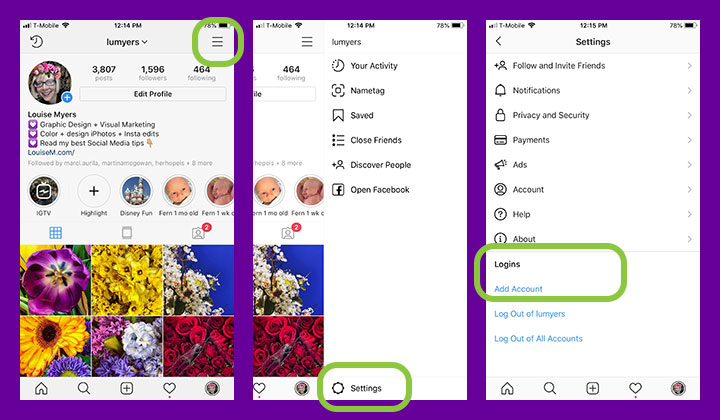
Tap the three lines in the top corner and then click 'settings'.
Scroll all the way down. You'll see an 'add account' option.
Tap, and you can create a new account or log into an existing one.
Can I use one login on multiple Instagram accounts?
News! One login has been deprecated in 2021.
You can no longer create one Instagram login for multiple Instagram accounts. If you've previously set up a single login for multiple Instagram accounts, you can continue to use this feature for those accounts.
You can't add new Instagram accounts to a single login, but you can remove any previously added accounts at any time. If you remove an account from your single login, you can't add it back. source
This is no great loss. I always recommended against it, since it permanently linked your accounts. It could be tricky to separate them once linked.
How to set up one login
One login no longer exists.
I've deleted the numerous tips needed to navigate this well-intentioned but poorly implemented feature. Onward…
Can I disconnect a personal and business account on the same email address?
Here's what one reader, Deanna, had to say. Please let us know in a comment if you try this and it no longer works in 2021.
I have a personal Instagram account and created a business account linked to it using my iPhone under the same email/password combo.
I can only access the business account through the personal account on my iPhone. On my Mac, I can log into my personal account, but it does not allow access to my business account.
I would like to be able to log into my business account on my Mac. Is there a way to create separate login information (username and password) for my business account now that it's already established and linked to my personal account?
Another reader left this option on October 7, 2020. This worked for him, though I can't vouch for it – and as social media always changes, we can't rely on this to be available in the future.
According to Linoy:
You should log out from it and then try to reset your password. You'll get an email to reset it, after you pick a new one a reset the password for this account, you'll be able to access both accounts – just with username and different passwords, even if it's under the same email.
Note that your accounts that had previously shared a password will be unlinked – BUT you can relink them with the new password. According to Deanna:
When I went back to my phone, because I had changed my business account password, I was notified that the business page was unable to be accessed. I unlinked the business account from my personal account and then relinked them following the prompts and using the new business account username/password. They linked up just fine.
Hope this helps.
What about push notifications on multiple Instagram accounts?
If you've added multiple Instagram accounts, you may get push notifications from any account that has them turned on. This depends on when you last logged in and the number of devices that are logged in to an account.

How do I remove an Instagram account I've added?
To remove an Instagram accounts you've added, you need to go to your profile.
Tap the three lines in the corner and then click settings.
Scroll right to the bottom and select 'log out'.
It will give you the option to select the account you want to log out of. Select this and you will be logged out.
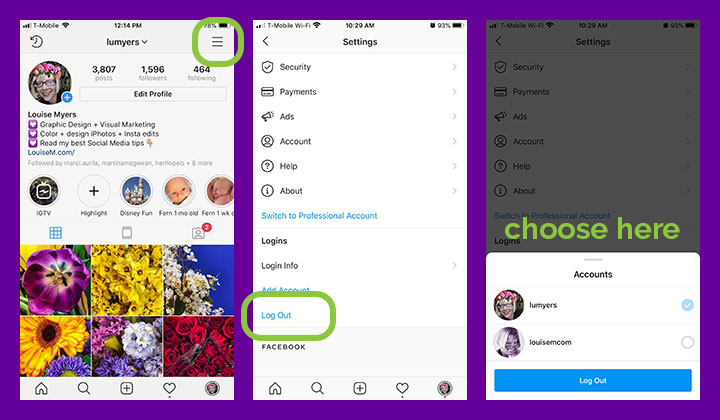
My removed Instagram account is still showing!
If you're still having problems, my wonderful readers have offered 3 different solutions.
Option 1:
- Go log out of both accounts.
- Then go back to the home page where you log in. It'll show the extra account still.
- The name will appear on the left and on the right will say log in for both.
- Hold down on the page and next to the log in tab an X will appear. Hit the X.
- It will prompt you that you will need all the info to log in again and ask if you're certain.
- Hit accept.
Here's another solution a reader found when that didn't work!
- The X wasn't active next to the account I wanted to remove.
- I removed Instagram from my iPhone by holding down the icon and tapping the little x in the corner.
- Then I re-downloaded the application from the App Store.
- I logged into my main account with my username and password.
- I went into settings and then to Add Account and added my second account again.
The third account is finally gone! PS. You have to be careful that you remember all of your usernames and passwords for this fix.
Plus, a third solution provided February 2019:
Here are the steps for removing an account from showing in your list that you've already deleted.
- Make sure you know the passwords for all your accounts.
- Log out of all your accounts.
- On the home page of the IG app, tap, Manage accounts.
- An X will appear next to the account name, tap that to remove the account you no longer want to appear.
- To remove another account, repeat step 4.
- Now you'll be able to create / add new accounts.
If this isn't working for you, use the Report a Problem feature in your account settings.
Unfortunately I can't provide additional assistance, because I haven't experienced this problem myself. Would love to get your insights if you've been able to solve it!
How to permanently delete an Instagram account
There's another option to removing an account, and that's deleting it.
Deleting an Instagram account must be done via a browser. You can't delete your account from within the Instagram app on your mobile device.
Permanently deleting your Instagram account cannot be undone!
When you delete your account, your profile, photos, videos, comments, likes and followers will be permanently removed in 30 days.
If you'd prefer to take a social media break, you can temporarily disable your account instead.
Because this is a big step, I recommend you read through this article on how to delete an Instagram account. It'll cover when you should disable instead of delete, precautions before deleting, and more.

Posting from scheduling tools
When you use an approved scheduling tool like Tailwind or Later, it is important to be logged into the right account on your app for some types of posts.
For example, Stories and carousel posts still need to be posted manually. So, when you click a notification from the scheduling app to post, you need to be logged into the right Instagram account on the app first.
Check this before you tap on the scheduler app notification!

Managing multiple accounts on desktop
Because desktop doesn't have an app, it isn't as easy to switch between accounts.
Rather than switching, you have to log out and log in again to another account. Which can get pretty confusing!
If you are a Google Chrome user, there's a quick tip to make the process easier – 'people'.
In the top corner of your Chrome browser, there's a picture or icon of you. This represents your account.
Tap on this and some options appear for your account settings.
At the bottom is 'other people'. If anyone else has a login saved on your Chrome, their picture will appear here.
At the bottom, there are two options: 'guest' and 'add'.
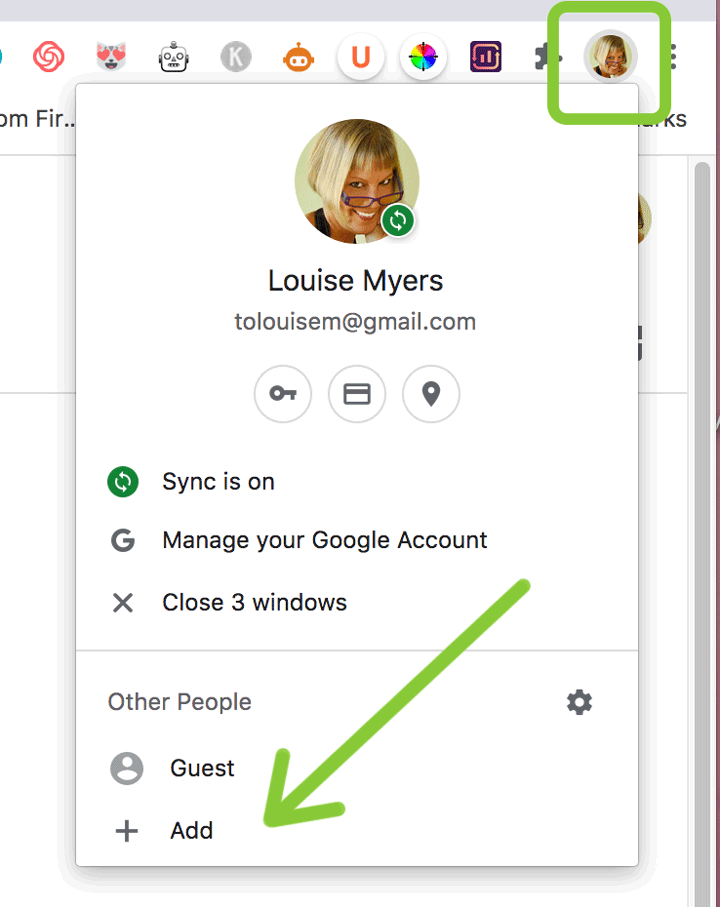
Click the add button and a screen opens.
Give the 'person' a name – if you have more than one business, you could call it after that. Or use 'personal' for a personal Instagram account.
You can give the person an icon to help you spot which one is which.
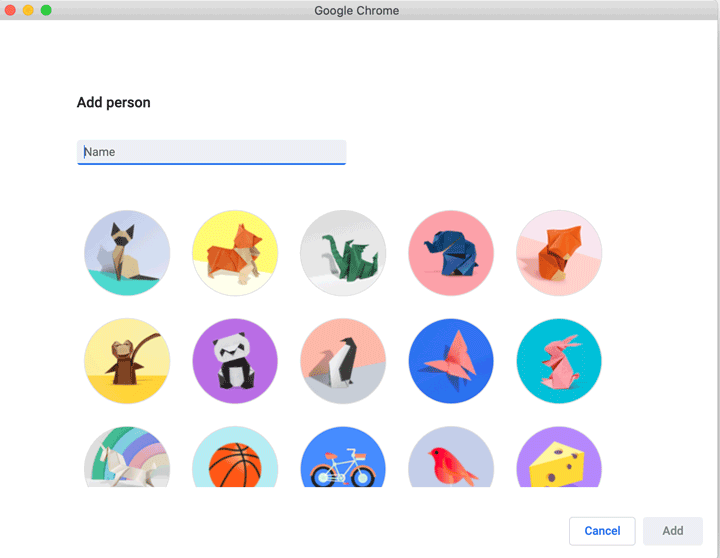
A new window will open as if you had never used Chrome before.
Now log into Instagram. If you want to use your personal account but have your main Chrome browser logged into your business one, use the personal login info.
Chrome will ask you if you want to save the password – click yes but don't sync with other profiles.
Now to get into your personal account without logging in and out, click your picture on Chrome and select the 'person' you just made.
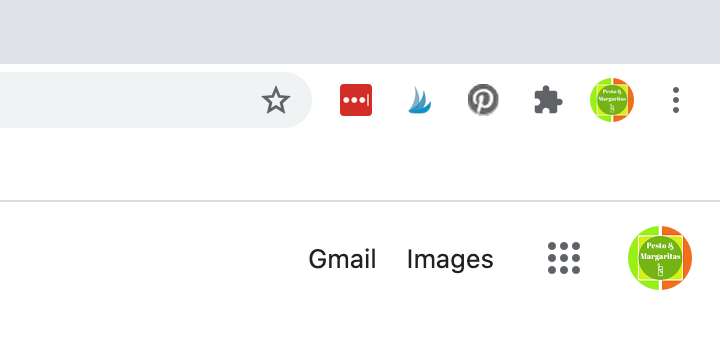
Go to Instagram and you will see your personal account.
This also works for things like Pinterest too if you have more than one account.
Wrapping Up
We covered all this:
- How to create another Instagram account.
- How to add Instagram Account Switching to existing accounts.
- How to navigate problems with linked accounts.
- Push notifications on multiple Instagram accounts.
- How to remove an Instagram account you've added, with troubleshooting tips.
- Posting to multiple accounts from scheduling tools.
- How to switch Instagram accounts on desktop.
Missed something? Need the details? Look for the purple banners above.
This is a long-awaited feature that I use daily.
Have you tried Instagram account switching yet?
Once you've set up another Instagram account, be sure to check out how to grow your Instagram followers 11 ways!

How to Add an Instagram Account to an Existing Account
Source: https://louisem.com/64235/multiple-instagram-accounts
0 Response to "How to Add an Instagram Account to an Existing Account"
Post a Comment